









Connecting didlogic numbers to Retell AI
This document provides technical instructions for integrating the Retell AI platform with didlogic. The objective is to configure a SIP trunk to route incoming and outgoing calls between a didlogic phone number and a Retell AI agent.
Purchase a number on the didlogic platform
Before placing or receiving a call, you must have an active phone number associated with your didlogic account. If you already have one, you can skip this section.
To purchase a number:
- Log in to your didlogic account
- Click BUY on the top menu
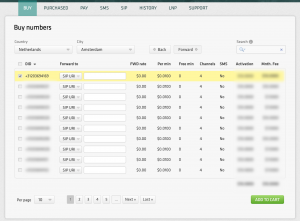
- Select the country and region where you wish to purchase a number
- Choose a specific number or numbers and click the Add to Cart button
- The Cart page opens, confirming the selection and completion of the checkout process for the DID(s).
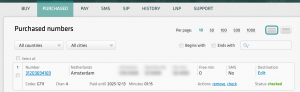
- Once you have purchased the DID, it will be reflected in the PURCHASED tab.
Note: Some numbers may require proof of local address and other documents before they can be activated. To activate these numbers, upload the requested documents and wait for approval from the didlogic Provisioning team.
Create a SIP account
- Navigate to the SIP tab in the top menu
- Click the Create SIP account button
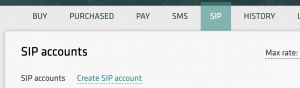
- Specify the SIP account name, set the SIP account password, and select one of the DIDs on your account as the Caller ID
- You can optionally restrict access by specifying authorised IP addresses, maximum call length, channels, and maximum call cost. If these parameters are not configured, the global account limits will apply
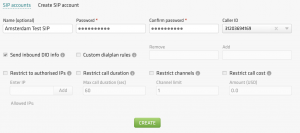
- Click Create.
After the SIP account is successfully created, it will appear on the list of SIP accounts

Please note that your 5-digit SIP account username is generated automatically and displayed in the SIP user name column.
Setting up Phone Number via SIP Trunking
- Go to the Phone Numbers section located on the left side of the screen
- Click on the plus icon and then “Connect to your number via SIP trunking” to open the configuration dialogue.
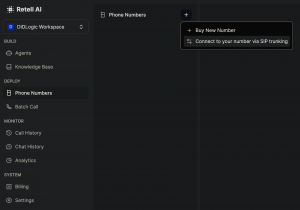
- Enter basic configuration with the following information:
Phone Number: The E.164 formatted phone number to connect (e.g., +31203694169)
Termination URI: Address that will be used for outgoing calls (e.g., sip.nl.didlogic.net). It can be found under your SIP account

SIP Trunk User Name: Username for SIP authentication (by default, your SIP login)
SIP Trunk Password: Password for SIP authentication
Nickname: Label for your number
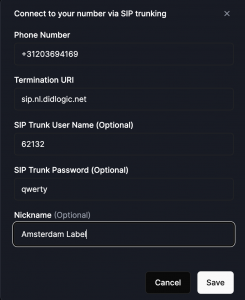
- Click Save to finalise the configuration. It should appear in your “Phone Numbers” section

Creating and Configuring the AI Agent
Once your phone number has been successfully imported, the next step is to create and configure the AI agent that will handle the calls.
To ensure access to the most up-to-date and detailed information, we recommend using their official guide, which is available in their official documentation.
Once you have created the agent, assign it to the phone number, using “Inbound call agent” or “Outbound call agent” parameter
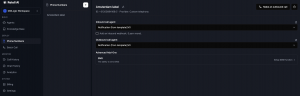
Incoming calls
In order for your agent to receive calls to your number, you need to go to didlogic and configure the SIP URI.
Steps to configure incoming call routing to a valid SIP URI:
- Navigate to your numbers on the didlogic website and locate which one will be used by Retell
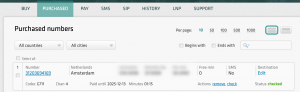
- Click “Edit” and on the menu “Forward to:” choose “SIP URI”.
- Enter your number and “sip.retellai.com” separated by @
It should look like this: “[email protected]”
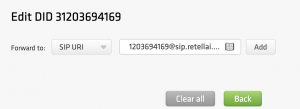
- Press the “Add “button, and it should appear just below. Make sure to place this destination first in order, if you already have another destination configured
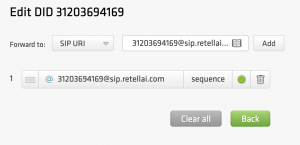
Outgoing Calls
Once a phone number is configured via SIP trunking and assigned to an AI agent, that agent is capable of initiating outbound calls. There are several ways of this process:
- Singular phone call: In “Phone numbers”, click on your imported phone number, then click “Make an outbound call” on the top right

- Enter the number to which the call should be addressed, add headers if needed, and press “Call”.
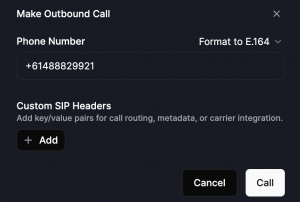
- You can monitor your entire call history in the “Call History” tab in the sidebar.

- Batch Call: Alternatively, you can initiate multiple outbound calls at once, making it ideal for campaigns or notifications. To access this feature navigate to “Batch Call” just below “Phone Numbers” on your sidebar

- Press the “Create a batch call” button and enter the configuration
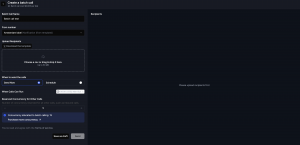
- Upload the CSV file of recipients and press “Send”
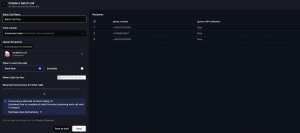
- It will appear in the “Batch Call” menu

- API Integration: Calls, chats, agents, phone numbers can be managed via the Retell API.
Detailed implementation guides, code examples, and specifications for API are available in the official documentation.
Free trial is available for IT infrastructure managers and developers.